A Hitchhiker's Guide to the Fediverse


The enshittification of commercial platforms like Twitter, Facebook, or YouTube is evident. Once praised for connecting people, they have become breeding grounds for misinformation, harassment, and divisive content.
What is the Fediverse?
The Federated Universe, known as Fediverse, provides a free, open-source alternative to mainstream social media. It’s a federated network, linking various social networks and microblogging services. In the Fediverse, millions of users can freely share multimedia content.
The Fediverse is decentralised, allowing multiple providers to offer access. Users or organisations can run their personal Twitter-, Facebook- or Youtube-like services. Through the ActivityPub protocol, users across different services interact seamlessly. The Fediverse prioritises user experience over ad revenue, rejecting algorithm-driven feeds and manipulative tactics. In the Fediverse, you retain control over your content.

Twitter ‣ Mastodon
| Description | |
|---|---|
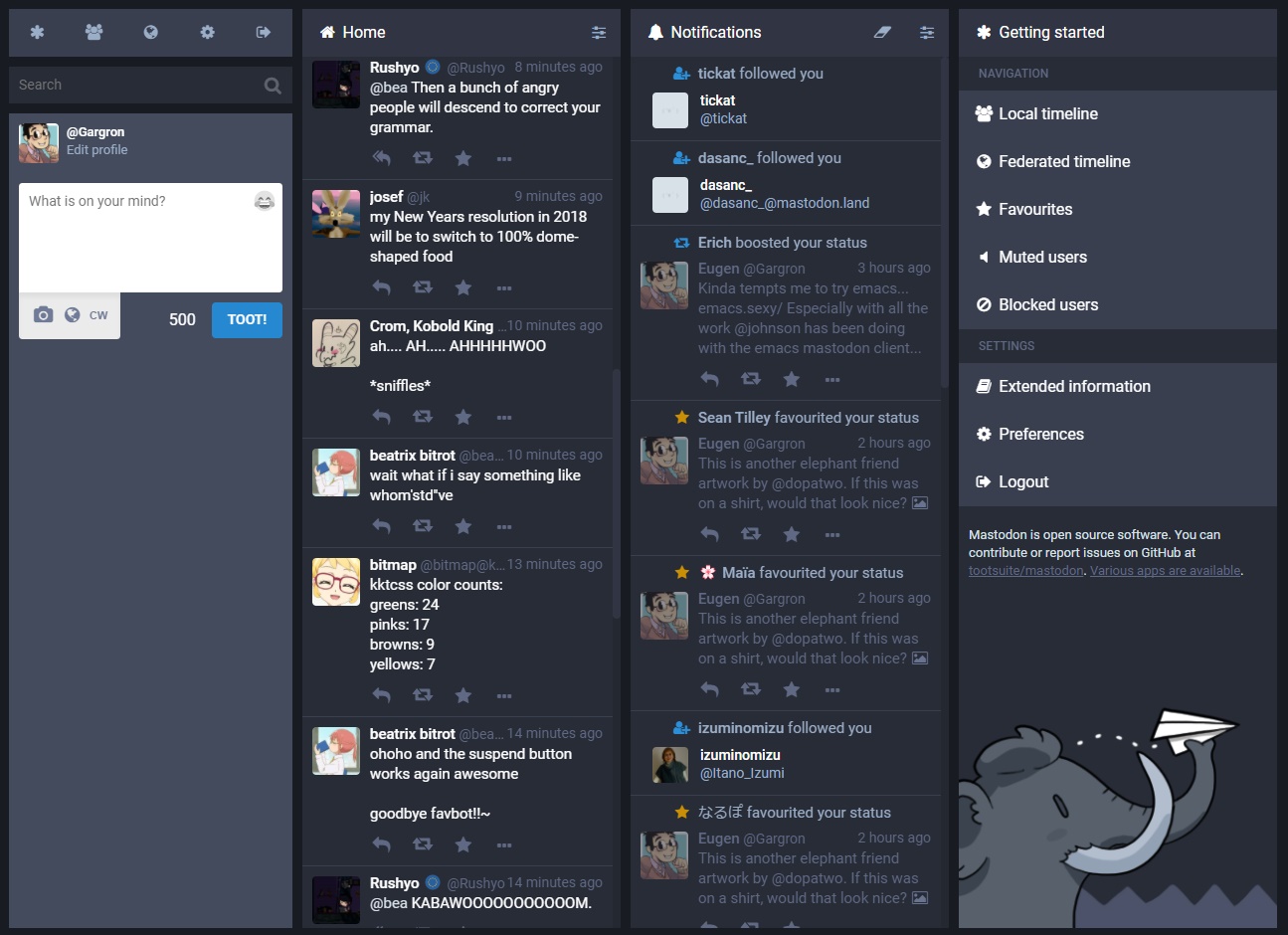  | What is Mastodon? It's the Fediverse alternative to Twitter. On this microblogging platform, you can follow accounts, post ‘toots’ (500 character messages), and retweet or ‘boost’ content. Launched in 2016, Mastodon operates on an open source model and supports self-hosting. Mastodon boasts nearly 700,000 active users. |
Get started with Mastodon!
| Instructions | Description |
|---|---|
| Create an account | Each Mastodon user has an unique identifier, which works similar to an email address and looks like this: @username@instance.social. Create a new account with any instance of your choice, or even self-host an instance. Here's a selection of active instances: • Mastodon Instances • Mastodon Server List |
| Sign in | Sign in to your instance via Mastodon's web application, or one of Mastodon's clients. You'll have access to your timelines, where posts from users in your instance or from other instances are displayed. |
| Post a message | • Web interface: use the message box displayed in the left panel • Client apps: click on the Pencil icon • Write your Toot • Optionally, add links, media files, mentions, emojis, polls or content warnings • Define who can see your post |
| Privacy settings | • Public messages are visible to everyone • Unlisted messages are only visible to your followers, users mentioned in the post or users viewing your profile • Followers-only messages are only visible to your followers or users mentioned in the post • Private messages are only visible to users mentioned in the post • Regardless of privacy settings, server administrators can access all messages, nothing is encrypted |
| Content Warnings | Sensitive content can be hidden until users click on a link in your post. This might be useful if you share sensitive content with your audience. |
| Hashtags | You can add hashtags # to your Toots, or click on words prefixed with a hashtag # to find similar content. |
| Clients | Pinafore and Halcyon are "Twitter-like" web clients. In addition, various dedicated mobile or desktop clients for Mastodon are available. Also works on degoogled phones running CalyxOS or LineageOS. |
Instagram ‣ PixelFed
| Description | |
|---|---|
  | PixelFed is the Fediverse's counterpart to Instagram. You can share, like, and comment on visual content. Launched in 2018, PixelFed is open source and allows self-hosting. PixelFed boasts 120,000 active users. |
Get started with PixelFed!
| Instructions | Description |
|---|---|
| Create an account | Create a new account with any instance of your choice, or even self-host an instance. Here's a selection of active PixelFed instances. |
| Sign in | • Sign in to your instance via PixelFed's web application, or one of PixelFed's clients • Click on Menu ‣ Settings ‣ Account to edit your profile photo, name, bio, password and so on |
| Timelines | • Click on Menu ‣ My Feed to access posts from users you follow • Click on Menu ‣ Public Feed to access posts from other users in your instance • Click on Menu ‣ Network Feed to access posts from other instances |
| Post your pictures & videos | • Click on the New button to upload one or multiple photos or videos • PixelFed supports various formats: jpeg, gif, png, mp4 or webp • Optionally, add captions, content warnings, tags, licenses or location • Define who can see your pictures • Public pictures & videos are visible to everyone • Unlisted pictures & videos are only visible to followers & on your profile • Followers Only pictures & videos are only visible to followers |
| Discover people & content | Click on Menu ‣ Discover to explore trending topics and recommended content. |
| Direct Messages | Click on the Direct button to send direct messages to other users. They can contain photos, videos, posts, text and so on. |
| Hashtags | You can add hashtags # to your own posts' captions, and follow hashtags to stay connected with topics you care about. |
| Stories | Click on New ‣ New Story to share moments during 24 hours. |
| Collections | Click on New ‣ New Collection to group posts into a collection. |
| Privacy settings | • Click on Menu ‣ Settings ‣ Privacy • Check Private Account to limit access to your photos & videos to approved followers only • Check Opt-out of search engine indexing to hide your photos & videos from search engines |
| Two-factor authentication (2FA) | • Click on Menu ‣ Settings ‣ Security • Provide your password • Click on Enable two-factor authentication • Scan the QR code with your mobile 2FA app, such as andOTP • Enter the 6 digit code into PixelFed's web form • Store the backup tokens provided by PixelFed. They allow to recover access to PixelFed without your phone |
| Clients | PixelDroid is a mobile client for Android. |
Reddit ‣ Lemmy
| Description | |
|---|---|
  | Lemmy is the Fediverse alternative to Reddit. You can join communities and post, like or comment on status updates and pictures. Launched in 2019, Lemmy stands as an open source platform and allows self-hosting. Lemmy counts almost 40,000 active users. |
Get started with Lemmy!
| Instructions | Description |
|---|---|
| Create an account | Create a new account with any instance of your choice, or even self-host an instance. Here's a selection of active instances: • Lemmy servers • FediDB |
| Sign in | Sign in to your instance via Lemmy's web application or one of Lemmy's clients. |
| Subscribe | • Click on Menu ‣ Communities • Subscribe to any community you're interested in |
| Post | • Click on Menu ‣ Create Post • Add a URL, picture, title or text • Select a community • Optionally, provide a content warning • Hit the Create button |
| Other settings | Refer to the Menu ‣ Username ‣ Settings section to update your profile, change passwords, specify how to display sensitive content, delete your account and so on. |
| Clients | Various dedicated mobile or desktop clients for Lemmy are available. |
YouTube ‣ PeerTube
| Description | |
|---|---|
  | Peertube is the Fediverse's response to Youtube, Vimeo, and Dailymotion. On this media streaming platform, you can view, like and upload videos. Since its inception in 2015, Peertube has remained fully open source and supports self-hosting. Peertube counts over 20,000 active users. |
Get started with PeerTube!
| Instructions | Description |
|---|---|
| Create an account | Create a new account with any instance of your choice, or even self-host an instance. Here's a selection of active instances: • PeerTube instances • FediDB |
| Sign in | Sign in to your instance via PeerTube's web application, or one of PeerTube's clients. You'll have access to your profile and plenty of videos. |
| Watch videos | The interface is pretty intuitive: play & pause videos, adjust the volume, change the video quality & speed, enable subtitles, switch to full screen mode, download & share videos, and so on. |
| Publish videos | • Click on the Publish button • Upload a video file, either from your device, via a URL or via a torrent link • Videos from YouTube, Vimeo, Dailymotion and so on can be easily imported, simply provide the corresponding URL in the Import with URL tab • PeerTube supports various formats: mp4, ogv, webm, flv, mov, avi, mkv, mp3, ogg & flac • Add information to your upload: title, tags, descriptions, category, licence and so on • Select a channel • Adjust the privacy settings • Hit the Submit button • Click the Share button to let your friends and contacts know about the video • Click Share ‣ Embed to copy a link & embed the video in your blog or website |
| Channels | PeerTube supports so-called "channels", allowing to group videos per topic. Manage your channels under My Library ‣ Channels. |
| Playlists | PeerTube also supports so-called "playlists", allowing to add videos to your collection. Playlists can be shared with others or remain private. Manage your playlists under My Library ‣ Playlists. |
| Subscribe | Hit the Subscribe button to follow channels or playlists from other users. You can subscribe with your local account, other accounts (such as Mastodon) or via RSS. |
| Search videos | Look for videos, channels or playlists by typing keywords in the search bar. Depending on your instances' settings, results might display videos from various instances, or from your own instance only. Alternatively, use a search engine like Sepia Search. |
| Privacy settings | • Public videos are visible to everyone • Internal videos are only visible to people signed-in on your instance • Unlisted videos are only visible to people with the private link • Private videos are only visible to you |
| Other settings | Refer to the My account ‣ Settings section to update your profile, change passwords, view storage space, specify how to display sensitive content, select language(s), manage notifications, delete your account and so on. |
| Clients | Various dedicated mobile or desktop clients for PeerTube are available. |
Facebook ‣ Friendica
| Description | |
|---|---|
  | Friendica is the Fediverse's response to Facebook. You can join fora to post, vote and comment on links and discussions. Established in 2010, Friendica is open source and supports self-hosting. |
Get started with Friendica!
| Instructions | Description |
|---|---|
| Create an account | Create a new account with any instance of your choice, or even self-host an instance. Here's a selection of active instances: • Friendica Directory • FediDB |
| Sign in | Sign in to your instance via Friendica's web application or one of Friendica's clients. You'll have access to your profile page, where status messages & posts are displayed. |
| Post your status | • Click on the Pencil & Paper icon or the Share box • Write your status update • Optionally, add links, media files or a location • Define who can see your post |
| Network Tab | This is where you can see, comment or like posts from your friends or groups. |
| Connect with people | Look for other people in Friendica's User Directory. Friendica will also make suggestions on the Friend Suggestions page. |
| Groups, Forums & Community Pages | If you don't know anyone on Friendica yet, connect to one of the various groups, forums or community pages. You'll be able to find and connect with people sharing common interests. |
| Connectors | Depending on your instances' settings, you might be able to interact with services outside of Friendica, such as Twitter, Diaspora, GNU Social or RSS feeds. |
| Clients | Various dedicated mobile or desktop clients for Friendica are available. |
Spotify ‣ Funkwhale
| Description | |
|---|---|
  | Funkwhale is the Fediverse's response to YouTube, Spotify, and SoundCloud. You can listen to, like, and share music, podcasts, and radio broadcasts. Launched in 2015, Funkwhale is fully open source and allows self-hosting. |
Get started with Funkwhale!
| Instructions | Description |
|---|---|
| Tagging | Prior to using Funkwhale, make sure your music library is tagged correctly. Good tagging makes it much easier for Funkwhale to display useful information such as album art or artist data. Picard is a cross-platform music tagger which helps managing your music library. |
| Create an account | Create a new account with any instance of your choice, or even self-host an instance. Here's a selection of active instances: • Funkwhale servers • FediDB |
| Upload content | • Sign in to your instance via Funkwhale's web application, or one of Funkwhale's clients • Click on the Add Content icon • Select a channel (to publish music) or a library (for public and/or private collections) |
| Channels | Funkwhale supports so-called "channels", which allow to manage public music. Channels can be followed from different Funkwhale instances, as well as other Fediverse services (e.g. Mastodon). To follow a channel from another user, simply click on Subscribe. To manage your own channels, click on Upload ‣ Publish your work in a channel ‣ Get Started. |
| Libraries | Funkwhale also supports so-called "libraries", which allow to manage public as well as personal music collections. Manage your libraries under Upload ‣ Upload third-party content in a library ‣ Get Started. Libraries come with different privacy levels: • Public libraries are visible to anyone • Local libraries are visible to other users from your instance • Private libraries are only visible to you • Regardless of the privacy level, library links can be shared with specific users to grant access Caution: note that you should always own appropriate copyrights, in particular if you use public or local libraries. |
| Playlists | Funkwhale also supports so-called "playlists", which can contain your uploaded music as well as content from other users. Manage playlists under Music ‣ Playlists. |
| Clients | Various dedicated mobile or desktop clients for Funkwhale are available. |
Support
For further details or questions, refer to:
- Mastodon's documentation or forum
- PeerTube's documentation, FAQ or forum
- PixelFed's documentation or help page
- Friendica's documentation or support site
- Lemmy's documentation
- Funkwhale's documentation or forum