Firefox and LibreWolf, Gateway to the Internet


We underestimate the importance of Internet browsers. Most of us use Chrome, Edge, or Safari, unknowingly allowing extensive data harvesting. These browsers are profit-driven and scrutinize your online actions. Use Firefox or LibreWolf instead!
Firefox
Firefox, released by the Mozilla community in 2004, is free, open source, and compatible across devices. It comes with many default privacy and security features, and can be further customised. Install Firefox now!
Step-by-step guide
Download and execute the Firefox installer.
Step-by-step guide
Download the Firefox disk image, open it, and drag the Firefox icon to the Applications folder. For quick access, add the Firefox icon to your dock from the Applications folder.
Step-by-step guide
Ubuntu changed the distribution package manager to Snap. Open the terminal using Ctrl+Alt+T or the Applications button. Execute the command below to install Firefox:
sudo snap install firefox
If you removed Snap and want to install Firefox, start by opening a configuration file:
sudo gedit /etc/apt/preferences.d/firefox-nosnap.pref
Add the following lines, then save the file:
# This file enables re-installing Firefox after removing snapd
Package: firefox*
Pin: release o=Ubuntu*
Pin-Priority: -1
Add the Mozilla team repository:
sudo add-apt-repository ppa:mozillateam/ppa
sudo apt update
Finally, install Firefox:
sudo apt install firefox
Step-by-step guide
Download Firefox from the App Store or directly from the Firefox page on your device. You can also explore Aurora Store for non-Google options. Learn more in upcoming chapters.
Step-by-step guide
Download Firefox from the App Store.
Firefox vs Chrome – What is the safest browser in 2024?
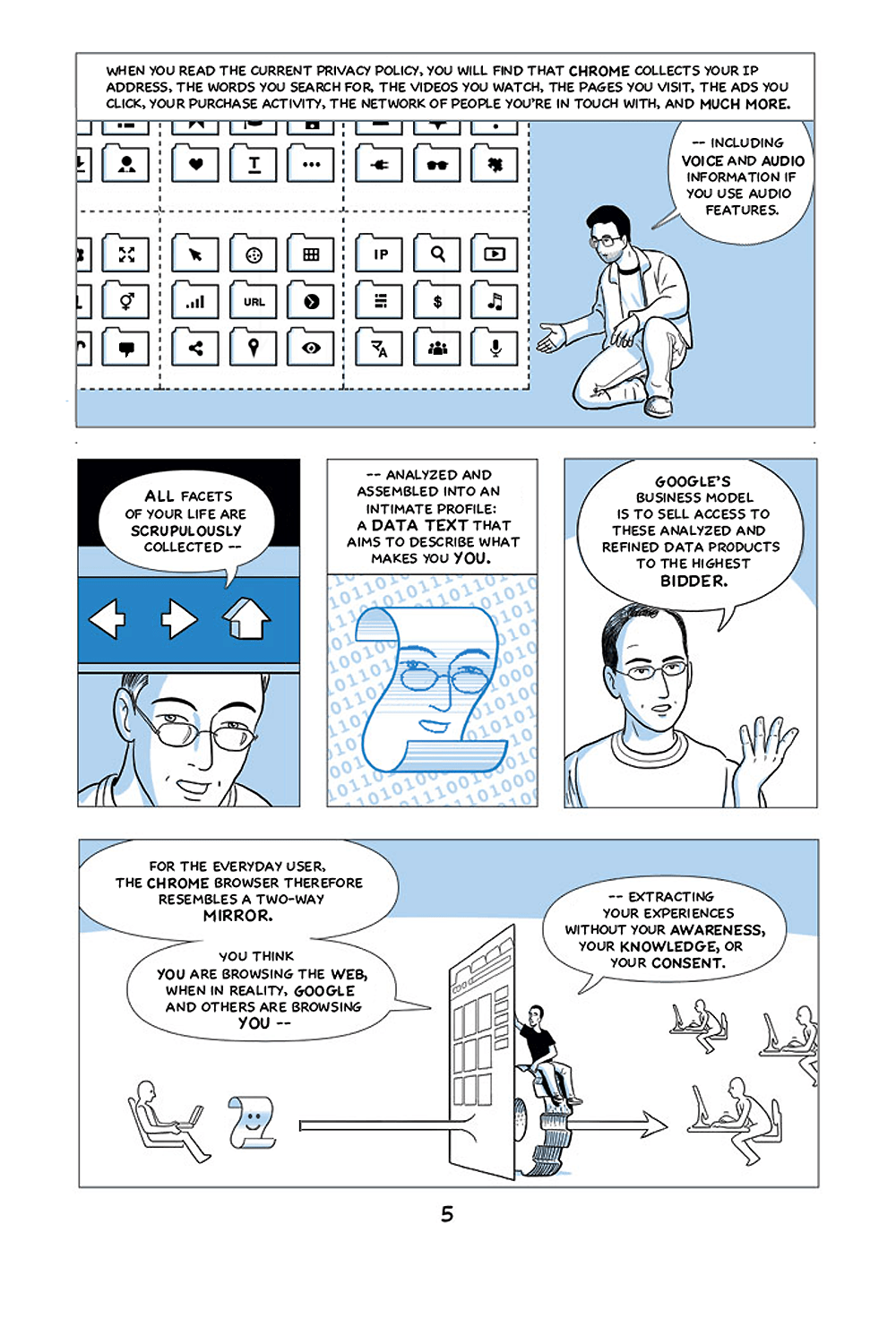
The quest for the most secure browser for privacy raises many questions. Numerous private browsers exist, but caution is advised, especially with Chrome and its Chromium derivatives. Leah Elliott's comic, Contra Chrome, explains why:
-
Chrome and its Chromium counterparts strengthen Google's browser monopoly.
-
Chrome-based browsers are gateways to Google's ecosystem, intertwining with GMail, YouTube, Google Photos, and more.
-
Google's browser and services routinely gather user data, often without consent, and sell them for profit.
| Tor | Librewolf | FOSS Browser | Fennec F-Droid | Ungoogled Chromium | Brave | Bromite | |
|---|---|---|---|---|---|---|---|
| FOSS | ✔1 | ✔ | ✔ | ✔ | ✔ | ✔1 | ✔ |
| Desktop Version | ✔ | ✔ | ✗ | ✗ | ✔ | ✔ | ✗ |
| Android Version | ✔ | ✗ | ✔ | ✔ | ✔ | ✔ | ✔ |
| Data Isolation (Tracking Protection) | ✔ | ✔ | ✔2 | ✔2 | ✔2 | ✔ | ✔ |
| Process Isolation (Sandbox) | ✔3 | ✔ | ✗ | ✗ | ✔ | ✔ | ✔ |
| Fingerprinting Protection | ✔ | ✔ | ✔4 | ✔4 | ✗ | ✔ | ✔4 |
| Content Blocker | ✔5 | ✔5 | ✔6 | ✔5 | ✗ | ✔ | ✔6 |
| Custom Search Engine | ✔ | ✔ | ✔ | ✔ | ✔ | ✔ | ✔ |
| Regular Security Updates | ✔ | ✔ | ✔ | ✔ | ✔ | ✔ | ✔ |
| Telemetry / Tracker Free | ✗7 | ✔ | ✔ | ✔8 | ✔ | ✗9 | ✔ |
-
Contains proprietary libraries.
-
Basic Tracking Protection only.
-
Available on Desktop only. Android version does not isolate websites to their own process to limit exposure to security vulnerabilities: neither per-site process isolation nor sandboxing are implemented.
-
Basic Fingerprinting Protection only.
-
Compatible with uBlock Origin.
-
Basic Content Blocker only.
-
Tor Browser for Android contains 3 trackers (Adjust, LeanPlum, Google Analytics)
-
Exodus Privacy reports 2 trackers (Adjust, LeanPlum) for Fennec F-Droid. However, according to the development team, this is a false positive: the tracker libraries were replaced with "stubs", meaning that they have been replaced with code that does nothing.
-
Brave is maintained by a for profit, VC-backed company. It features an (opt-in) ad system, and faced criticism in the past for adding affiliate links that it profits from. Transmits telemetry data to an analytics service by default, this can be opted-out.

Extensions
Strengthen your Firefox installation with uBlock Origin. It’s a reliable, free, and open-source content filter. Visit Mozilla's addon store and click Add to Firefox for improved privacy settings, as detailed below.
Step-by-step guide
- Click on the uBlock Origin icon in Firefox's toolbar
- Make sure uBlock Origin is enabled, the large power button needs to be blue
- Click on the Dashboard button
- Open the tab
Filter lists - Select the check boxes shown in the table below and click on
Apply changes
| Section | Check box |
|---|---|
| Ads | ☑ AdGuard Base ☑ AdGuard Mobile Ads ☑ EasyList |
| Privacy | ☑ AdGuard Tracking Protection ☑ EasyPrivacy ☑ Fanboy's Enhanced Tracking List |
| Annoyances | ☑ AdGuard Annoyances ☑ AdGuard Social Media ☑ Anti-Facebook ☑ EasyList Cookie ☑ Fanboy's Annoyance ☑ Fanboy's Social ☑ uBlock filters - Annoyances |
Strengthen your Firefox installation with uBlock Origin. It’s a reliable, free, and open-source content filter. In Menu ‣ Add-ons, click the + symbol next to uBlock Origin for improved privacy settings, as detailed below.
Step-by-step guide
- Navigate to
Menu ‣ Add-ons ‣ uBlock Origin ‣ Settings - Open the tab
Filter lists - Select the check boxes shown in the table below and click on
Apply changes
| Section | Check box |
|---|---|
| Ads | ☑ AdGuard Base ☑ AdGuard Mobile Ads ☑ EasyList |
| Privacy | ☑ AdGuard Tracking Protection ☑ EasyPrivacy ☑ Fanboy's Enhanced Tracking List |
| Annoyances | ☑ AdGuard Annoyances ☑ AdGuard Social Media ☑ Anti-Facebook ☑ EasyList Cookie ☑ Fanboy's Annoyance ☑ Fanboy's Social ☑ uBlock filters - Annoyances |
What is a browser extension? Tell me more about privacy extensions!
Browser extensions are tools enhancing your web experience. Use them with caution. Extensions ease fingerprinting, a practice used to collect data for targeted ads. More extensions mean a larger attack surface. Check how easy it is to track your browser at EFF's "Cover Your Tracks".
Extensions can also break websites. Add them gradually, and disable them if issues arise. Striking the privacy-usability balance is crucial.
Finally, avoid checking boxes in uBlock Origin's Annoyances section if you use social sharing buttons from Facebook, Twitter and so on.
| Addons | Description |
|---|---|
| LibRedirect | Redirects YouTube, Twitter, Reddit, TikTok, Instagram and more to alternative privacy friendly frontends. |
| Privacy Redirect | Redirects YouTube, Twitter, Instagram, Reddit and Google Search/Maps/Translate to alternative privacy friendly frontends. |
| Clear URLs | Remove tracking elements from URLs. |
| Cookie autodelete | Automatically delete unused cookies when closing tabs. |
| I don't care about cookies | Get rid of cookie warnings. |
| Miner block | Block cryptocurrency miners. |
| Cloud firewall | Block connections to cloud services from Google, Amazon, Facebook, Microsoft, Apple and Cloudflare. |
| CSS exfil protection | Guard your browser against data theft from web pages using CSS. |
| Disconnect | Visualise and block web tracking. |
| Noscript | Allow only trusted web sites to execute JavaScript, Java, Flash and other plugins. |
| Privacy badger | Stop advertisers and other third-party trackers from secretly spying on you. |
| Decentraleyes | Block tracking via content delivery networks operated by third parties. |
| Terms of service; didn't read | Understand websites' terms & privacy policies, with ratings and summaries. |
Privacy & security settings
Open a new Firefox tab. Clear clutter like Top Sites or Highlights for a clean interface. Type about:preferences in the address bar for detailed privacy and security settings.
Step-by-step guide
Warning: Apply these settings with caution, some might break web sites. Add new settings progressively and disable them in case of negative impacts.
| Menu | Settings |
|---|---|
| General | In the section Language, uncheck the box Check your spelling as you type. |
| General | In the section Browsing, uncheck the two boxes Recommend extensions as you browse and Recommend features as you browse. |
| Home | In the section Firefox Home Content, uncheck the boxes Shortcuts, Recent activity and Snippets. |
| Search | In the section Search Suggestions, uncheck the box Provide search suggestions. |
| Search | In the section Search Shortcuts, remove Google, Bing, Amazon and Ebay. |
| Search | Browse to Disroot Searx and add it to the default search engines by right clicking or clicking on the 3-dot actions menu in the address bar. Remark: You'll find more suggestions on privacy respecting search engines at the end of this section. |
| Search | Go back to the section Default Search Engine in Firefox's settings and select Disroot SearX. |
| Privacy & Security | The section Enhanced Tracking Protection contains settings to prevent third parties from tracking you across websites. Select between Standard and Strict settings. Stricter settings will block more trackers and ads, but are also more likely to break websites. |
| Privacy & Security | In the section Tracking Protection, also select Always Send websites a Do Not Track signal. |
| Privacy & Security | In the section Cookies and Site Data, select Delete cookies and site data when Firefox is closed. Then click on Clear Data and erase all cookies and site data stored by Firefox. |
| Privacy & Security | In the section Logins and Passwords, unselect Ask to save logins and passwords for websites. |
| Privacy & Security | In the section History, select Use custom settings for history. Uncheck the boxes Remember browsing and download history and Remember search and form history. Instead, check the box Clear history when Firefox closes. Then click on Clear History and erase all data stored by Firefox. Remark: this is a work-around, as for some obscure reason Never remember history breaks many add-ons. |
| Privacy & Security | In the section Firefox Data Collection and Use, uncheck all entries. |
| Privacy & Security | In the Security section, uncheck the entry Block dangerous and deceptive content. While this setting helps spotting phishing and malware, it does so by establishing a connection to Google's servers. |
| Privacy & Security | In the section HTTPS-Only Mode, select Enable HTTPS-Only Mode in all windows. This enables the Hypertext Transfer Protocol Secure (HTTPS) by default, a form of encryption which protects web traffic. A (green) lock should show up in Firefox's address bar each time you navigate to a website. |
| Privacy & Security | In the section Address Bar, unselect Contextual suggestions and Include occasional sponsored suggestions. |
| General | (Optional) Check the box Always check if Firefox is your default browser and click on Make Default. |
Launch Firefox, and click Start browsing. Clear clutter, like Google or Top Articles, for a clean tab. Navigate to Menu ‣ Settings to adjust Firefox's privacy and security settings.
Step-by-step guide
Warning: Apply these settings with caution, some might break web sites. Add new settings progressively and disable them in case of negative impacts.
| Menu | Settings |
|---|---|
| Search | In the section Default search engine, remove Google, Bing, Amazon, Qwant and Ebay. |
| Search | In the section Default search engine, click on + Add search engine. Under Other, fill in the following:• Name: Disroot SearX• Search string to use: https://search.disroot.org/search?q=%s Then click on 🗸 to apply all changes. Remark: You'll find more suggestions on privacy respecting search engines at the end of this section. |
| Search | Back in the section Default search engine, select Disroot SearX. |
| Search | In the section Address bar, disable the options Autocomplete URLs, Show clipboard suggestions, Search browsing history and Show search suggestions. |
| Customise | In the section Home, disable Show most visited sites. |
| Logins and passwords | Change the option Save logins and passwords to Never save. |
| Logins and passwords | Disable Autofill. |
| Enhanced Tracking Protection | Make sure the option Enhanced Tracking Protection is enabled to prevent third parties from tracking you across websites. Select between Standard and Strict settings. Stricter settings will block more trackers and ads, but are also more likely to break websites. |
| Delete browsing data on quit | Enable the option Delete browsing data on quit. If you want open tabs to be restored after closing Firefox, unselect Open tabs. |
| Data collection | Disable Usage and technical data, Marketing data as well as Studies. |
| General | (Optional) Enable Set as default browser. |
Firefox offers a whole range of advanced privacy and security settings. Access them by typing about:config in the address bar of your Windows, macOS or Linux device. If micro-managing settings becomes a bit tedious, you can simply install a user.js file. This JavaScript file loads pre-configured settings each time you launch Firefox. Learn how below!
Step-by-step guide
Warning: use user.js files with caution. The stricter the privacy level, the more websites might break!
Back up your current configuration, which is stored in a file named pref.js:
| Instructions | Description |
|---|---|
| Step 1 | Type about:support in Firefox's address bar. |
| Step 2 | Go to Application Basics. |
| Step 3 | Click on Open Directory. |
| Step 4 | Back up a copy of the pref.js file. |
Now download your preferred user.js template. Find out more about available templates at the end of this section. Place the downloaded user.js file in the same folder as the pref.js file. Depending on your browser and operating system, this folder should be located here:
| OS | Path |
|---|---|
| Windows | %APPDATA%\Mozilla\Firefox\Profiles\XXXXXXXX.your_profile_name\user.js |
| macOS | ~/Library/Application Support/Firefox/Profiles/XXXXXXXX.your_profile_name |
| Linux (Ubuntu) | ~/.mozilla/firefox/XXXXXXXX.default-release/user.js |
If at any point you need to revert back to your initial settings, just restore the file pref.js and delete the user.js file.
Where can I find user.js templates?
- Arkenfox user.js strikes a nice balance between privacy and usability. More information on the wiki page
- Pyllyukko
- Relaxed Pyllyukko
- Privacy Handbook minimal configuration (German)
- Privacy Handbook moderate configuration (German)
- Privacy Handbook strict configuration (German)
- A tool to make your own user.js file
- Explanation of common user.js settings
Privacy-respecting search engines
| Search engine | Description |
|---|---|
| Searx | Open source meta search engine. Aggregates anonymous search results from various engines. Various instances are accessible online, for example from Disroot. Can also be self-hosted. |
| Duckduckgo | US-based meta search engine, mainly aggregates Bing/Yahoo results. DuckDuckGo has a search agreement with Microsoft. After pushback from tech experts, DuckDuckGo agreed to block Microsoft tracking. |
| Ecosia | German meta search engine, mainly provides Bing results and plants trees. |
| Swisscows | Swiss meta search engine, mainly provides Bing results. |
| Mojeek | UK based search engine. |
| Metager | German open source meta search engine. |
| Qwant | French meta search engine, VC-funded (large multimedia company Axel-Springer is an investor). |
| Startpage | Dutch meta search engine, mainly provides Google results. System 1, an ad company, is shareholder since October 2019. |
LibreWolf
In the browser arena ruled by Google, Firefox emerges as a key independent player. While we recommend Firefox as a robust alternative to Chrome, it's not free of criticisms. LibreWolf is a custom version of Firefox, focused on privacy, security, and freedom. It removes telemetry, integrates privacy-conscious search engines, includes an ad blocker, and benefits from frequent updates.
Step-by-step guide
Download and execute the LibreWolf installer.
Step-by-step guide
Download the LibreWolf disk image, open it, and drag the LibreWolf icon to the Applications folder. For quick access, add the Firefox icon to your dock from the Applications folder.
Step-by-step guide
Open the terminal using Ctrl+Alt+T or the Applications button. Execute the commands below to add the repositories and install LibreWolf:
sudo apt update && sudo apt install extrepo -y
sudo extrepo enable librewolf
sudo apt update && sudo apt install librewolf -y
Mozilla in Google's Shadow
Mozilla's choices, like integrating partly closed-source Pocket and enabling sponsored content or telemetry by default, draw scrutiny.
There are also broader financial concerns. Mozilla Corporation, responsible for Firefox's development, relies on a commercial deal with its main competitor, Google. This partnership, dating back to 2006, brings in 450 million dollars yearly. In exchange, Google has become Firefox’s default search engine. Questions arise about this financial tie – is Google stifling competition while keeping regulatory authorities at bay? A fox doesn't bite the hand that feeds it...
Support
For further details or questions, refer to Firefox's documentation, the Firefox community, uBlock's documentation or one of the many tutorials.