A Beginner's Guide To Ubuntu

Linux is an open source operating system, offering an alternative to proprietary software from tech giants. Linux prioritises user privacy, runs on older hardware, offers high security, promotes interoperability, and opposes Digital Restrictions Management (DRM) practices. Your computer very likely supports Linux. Say goodbye to Microsoft, Apple or Google!
What is Ubuntu?
Linux comes in many flavors, called distributions or "distros". Ubuntu is one of them. It’s an African term symbolizing humanity, community, equality, and individuality. Ubuntu is based on Debian and developed by Canonical Ltd., a UK-based company. It receives regular releases every six months, alongside long-term support (LTS) versions every two years. The latest LTS release, Ubuntu 24.04, ensures support until April 2029. Ubuntu appeals to a diverse audience, featuring various desktop environments like GNOME, Xfce, LXQt, and KDE. Users can choose based on preference, with options including Ubuntu Mate, Xubuntu, Lubuntu, Kubuntu, elementaryOS, Linux Mint, Pop!_OS, and Zorin OS.
How many people run Linux on their computer?
What is the best Linux distro?
| Distribution | Description |
|---|---|
| Distro chooser | Great site to guide your choice. |
| Debian | One of the most widely used distributions, consisting entirely of free software (with the possibility to add proprietary elements). Openly and transparently handles security vulnerabilities. Offers great support, for example in this forum and wiki. |
| Fedora | Innovative, free, and open source platform for hardware, clouds, and containers. |
| Arch | Lightweight and flexible Linux distribution that tries to Keep It Simple (KISS). Arch Linux does not use a graphical interface to install or configure your operating system. The Arch community offers great support, for example in this forum and wiki. |
| Qubes OS | Open source operating system designed to provide strong security. Used by Edward Snowden. |
| Tails | Live operating system that runs on almost any computer from a USB stick or a DVD. Aims at preserving privacy and anonymity, and circumventing censorship by forcing internet connections through the Tor network. |
| Knoppix | Bootable Live system on CD, DVD or USB flash drives. |
| Pure OS | User friendly, secure and freedom respecting OS for your daily usage. |
| MX Linux | Elegant and efficient desktop with simple configuration, high stability, solid performance and medium-sized footprint. The MX Linux community offers great support, for example on this forum and wiki. |
| Manjaro | Professionally made operating system, suitable replacement for Windows or MacOS. Contains proprietary elements such as multimedia codecs. The Manjaro community offers great support, for example in this forum and wiki. |
| Trisquel | Fully free operating system for home users, small enterprises and educational centers. Derived from Ubuntu. Fully free, without proprietary software. |
| Gentoo | Highly flexible, source-based Linux distribution. |
| Alpine Linux | Security-oriented, lightweight Linux distribution based on musl libc and busybox. |
| Parrot | Free and open source GNU/Linux distribution designed for security experts, developers and privacy aware people. |
Where can I buy a computer with Linux preinstalled?
Here a hand-picked, subjective and disinterested list; none of these links are affiliated.
| Shop | Description |
|---|---|
| Linux Preloaded | A curated list of Linux laptop and desktop vendors; great site to guide your choice. |
| System76 | Laptops, desktops, and servers running Pop!_OS or Ubuntu. |
| Minifree | Linux/BSD preinstalled laptops with Libreboot BIOS replacement. |
| Slimbook | Desktop computers and laptops with native GNU/Linux compatibility. |
| Nitrokey | German company specialised in open source security hardware. |
| Purism | Desktop computers and laptops running PureOS, a Debian-based distro. |
| Kubuntu Focus | Kubuntu-systems with pre-configured software, updates, and long-term support. |
| Starlabs | Desktop computers and laptops running Linux. |
| Think Penguin | GNU/Linux-compatible laptops, desktops and technical support. |
| Linux Mint | Desktop computers and laptops running Linux Mint. |
| Tuxedo Computers | Desktop computers and laptops optimised for Ubuntu-based systems. |
| Laptop with Linux | Laptops and mini computers pre-installed with Linux. |
| Lenovo | Desktop computers and laptops with Linux preloaded. |
I’d just like to interject for a moment...
What you’re referring to as Linux, is in fact, GNU/Linux, or as I’ve recently taken to calling it, GNU plus Linux. Linux is not an operating system.
Many computer users run a modified version of the GNU system every day, without realizing it. Through a peculiar turn of events, the version of GNU which is widely used today is often called "Linux", and many of its users are not aware that it is basically the GNU system, developed by the GNU Project. There really is a Linux, and these people are using it, but it is just a part of the system they use.
Linux is the kernel: the program in the system that allocates the machine’s resources to the other programs that you run. The kernel is an essential part of an operating system, but useless by itself; it can only function in the context of a complete operating system. Linux is normally used in combination with the GNU operating system: the whole system is basically GNU with Linux added, or GNU/Linux. All the so-called "Linux" distributions are really distributions of GNU/Linux!
Check out https://gnu.org to learn more about Linux and GNU.
Ubuntu Live USB & VirtualBox
Boot from a Live USB or DVD to explore Ubuntu GNOME without affecting your current operating system. Reverting is easy if Ubuntu isn't right for you.
Step-by-step guide
| Instructions | Description |
|---|---|
| Download | Download the latest long-term support (LTS) version of Ubuntu. At the time of writing, the latest LTS was Ubuntu 24.04. Check out the most recent Ubuntu release cycle for more information. |
| Burn | Use a Windows, macOS or Ubuntu Linux machine to burn the downloaded .iso file to a DVD. Alternatively, use a Windows, macOS or Ubuntu machine to create a bootable USB drive. |
| Restart | Insert the bootable DVD or USB drive into the computer on which you want to test Ubuntu, then restart the machine. Most machines will boot automatically from the DVD or USB drive. If that's not the case, try repeatedly hitting F12, ESC, F2 or F10 when the computer starts up. This should provide access to the boot menu, where you can select the DVD or USB drive as boot device. |
| Test Ubuntu | Once booted from the DVD or USB drive, select Try or Install Ubuntu and press ENTER. Wait until Ubuntu loads from the bootable device, this can take a while. Once the welcome screen appears, select Try Ubuntu from the menu. |
Set up a virtual machine in VirtualBox to explore Ubuntu GNOME without affecting your current operating system. Reverting is easy if Ubuntu isn't right for you.
Step-by-step guide
Install VirtualBox
Make sure your computer meets the minimum requirements: 2GHz dual core processor or better, 2 GB RAM or more, 25 GB of free drive space. Download and run the latest VirtualBox Platform Package for Windows hosts. Open the downloaded .exe file and follow the installation wizard.
Make sure your computer meets the minimum requirements: 2GHz dual core processor or better, 2 GB RAM or more, 25 GB of free drive space. Download the VirtualBox Platform Package for OS X hosts. To install VirtualBox on Mac, open the downloaded .dmg file and drag the VirtualBox icon on top of the Application folder. For easy access, open the Applications folder and drag the VirtualBox icon to your dock.
Configure VirtualBox
| Instructions | Description |
|---|---|
| Download Ubuntu | Download the latest long-term support (LTS) version of Ubuntu Desktop. At the time of writing, the latest Ubuntu LTS was Ubuntu 24.04. Check out the Ubuntu release schedule for more information about the most recent Ubuntu LTS releases. |
| Create a Virtual Machine | Start VirtualBox and click on the button New. |
| Name and operating system | Give your Virtual Machine (VM) a name, for example Ubuntu. Also select the Operating System (Linux) and the version, for example Ubuntu (64-bit). |
| Memory size | Choose how much RAM to allocate to Ubuntu. 2 GB are recommended, 3-4 GB are even better. |
| Hard disk | Select Create a virtual hard disk now to add a virtual hard disk. |
| Hard disk file type | Choose the VDI format for the hard disk file type. |
| Storage on physical hard disk | Choose Dynamically allocated for the hard disk file size. |
| File location and size | Choose where to create the virtual disk. Also, decide how much disk space to allocate to Ubuntu. 10 GB are recommended, more is even better. |
| Optical Disk Selector | Back on the main screen, click on Start to launch the Virtual Ubuntu Machine. In the pop-up dialogue, click on the icon to choose a virtual optical disk file. Click on Add and navigate to the location of the previously downloaded LTS Ubuntu .iso file. Click on Open, Choose and Start. |
| Boot | From the boot menu, select Try or Install Ubuntu and press ENTER. After the boot phase, the Ubuntu installation wizard will show up. |
Install VirtualBox Ubuntu
| Instructions | Description |
|---|---|
| Welcome | Select a language and click on Install Ubuntu. |
| Keyboard layout | Select a keyboard layout. |
| Updates and other software | Choose between a normal or minimal installation, depending on how many apps you would like to install from the start.Optionally, check the box Download updates while installing Ubuntu to speed up the setup after the installation, and the box Install third-party software to benefit from (proprietary) drivers for graphics, WiFi, media files, and so on. Click on Continue. |
| Installation type & encryption | This screen allows to choose whether to delete the existing operating system and replace it with Ubuntu, or whether to install Ubuntu alongside the existing operating system (so-called dual boot). Since we're installing Ubuntu in VirtualBox, no other operating system is present. Just choose Erase disk and install Ubuntu, click on Advanced features and select Use LVM with the new Ubuntu installation as well as Encrypt the new Ubuntu installation for security. Then click on OK and Install Now. |
| Choose a security key | Choose a strong and unique security key. It will be required to decrypt the disk each time the computer starts up. Also check the box Overwrite empty disk space for more security. Click on Install Now. Confirm the pop-up window by clicking on Continue. Caution: If you lose the security key, all data will be lost. Store the security key safely. |
| Where are you? | Choose a time zone and location. Click on Continue. |
| Who are you? | Provide login information, such as a username and strong, unique password. Select Require my password to log in. Click on Continue. |
| Restart & login for the first time | Click on Restart Now after the successful installation. The Virtual Machine will reboot. You can now log in to your first Ubuntu session by providing the correct security key and password. |
| Discover Ubuntu | Walk through the initial setup options, and start discovering Ubuntu. Close the session once you've finished. Going forward, you can launch Ubuntu by clicking on the Start button on VirtualBox's main screen. |

Install Ubuntu
Interested in using Ubuntu? Ready to install it permanently? Let's ensure everything's in order and proceed with the installation.
Preliminary checks
| Checklist | Description |
|---|---|
| Is my device compatible with Linux? | • Test it with a Live USB or VirtualBox • Check the compatibility database • Ask the Internet |
| Does my device fulfill the minimum requirements? | • 2 GHz dual core processor • 4 GB system memory (RAM) • 25 GB of free storage space (Ubuntu takes approx. 5 GB, keep at least 20 GB for your data) |
| Is my device plugged in? | If you install Ubuntu on a mobile device such as a laptop, make sure it's plugged in. |
| Is the installation medium accessible? | Check if your computer has either a DVD drive or a free USB port. |
| Is my device connected to the Internet? | Check if the Internet connection is up and running. |
| Have I backed up my data? | Back up your data, since there is a (small but real) risk of data loss during the installation process! |
| Have I downloaded the latest Ubuntu version? | Download the latest long-term support (LTS) version of Ubuntu, which is supported for 5 years, including security and maintenance updates. At the time of writing, the latest LTS was Ubuntu 24.04. Check out the most recent release cycle for more information. |
| Have I prepared a Ubuntu bootable USB or DVD? | Use a Windows, macOS or Ubuntu Linux machine to burn the downloaded .iso file to a DVD. Alternatively, use a Windows, macOS or Ubuntu machine to create a bootable USB drive. |
Step-by-step guide
| Instruction | Description |
|---|---|
| Boot | Insert the bootable DVD or USB drive and restart the computer. Most machines will boot automatically from the DVD or USB drive. If that's not the case, try repeatedly hitting F12, ESC, F2 or F10 when the computer starts up. This should provide access to the boot menu, where you can select the DVD or USB drive as boot device. Once booted from the DVD or USB drive, select Try or Install Ubuntu and press ENTER. Wait until Ubuntu loads from the bootable device, this can take a while. |
| Welcome | You will be presented with the installation wizard. Select a language and click on Install Ubuntu. |
| Keyboard layout | Select a keyboard layout. |
| Updates and other software | Choose between a normal or minimal installation, depending on how many apps you would like to install from the start. Optionally: • Check the box Download updates while installing Ubuntu to speed up the setup after the installation • Check the box Install third-party software to benefit from (proprietary) drivers for graphics, WiFi, media files, and so on.Next, click on Continue. |
| Installation type & encryption | Choose whether to: • Delete the existing operating system and replace it with Ubuntu. Caution: this will erase all data on your hard drive! Make sure you backed up your data! • Or install Ubuntu alongside the existing operating system (so-called dual boot). This should have no incidence on the existing configuration of your computer. Still, make sure backed up your data, you never know... To encrypt Ubuntu, click on Advanced features and select: • Use LVM with the new Ubuntu installation • Encrypt the new Ubuntu installation for security Then click on OK and Install Now. |
| Provide a security key | Enter a strong, unique security key. It will be required to decrypt the disk each time the computer starts up. Also check the box Overwrite empty disk space for more security. Click on Install Now. Confirm the pop-up window by clicking on Continue. Caution: If you lose this security key, all data will be lost. Store it safely. |
| Where are you? | Choose a time zone and location. Click on Continue. |
| Who are you? | Provide login information, such as a user name and a strong, unique password. Select Require my password to log in for more security. Then click on Continue. |
| Restart & login for the first time | That's it. Wait for the installation to finish, remove the USB key and click on Restart Now when prompted. After the reboot, log into Ubuntu with your security key and password. |
GNOME Desktop
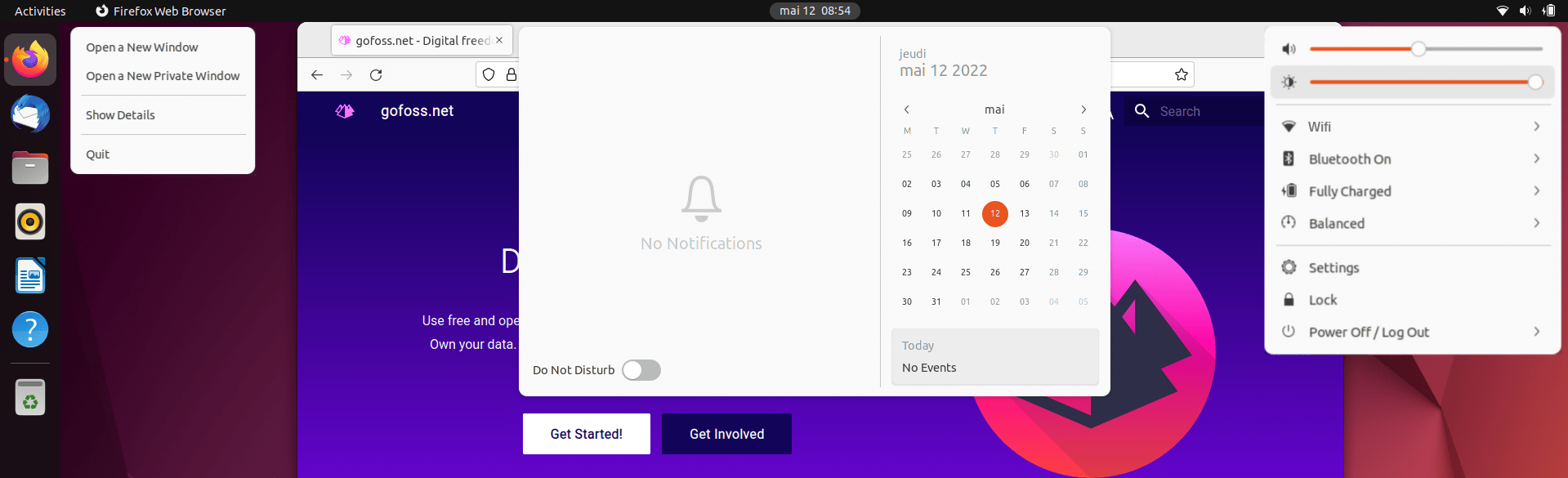
Upon signing in, the GNOME Desktop loads, offering easy access to essential features. The top bar features an Activities button for window management, workspace organization, and quick app and file searches. Instantly view the current time, date, and appointments. Easily adjust system settings like sound, screen brightness, and network connections. For more convenience, navigate to Settings ‣ Power ‣ Suspend & Power button to display the battery percentage.
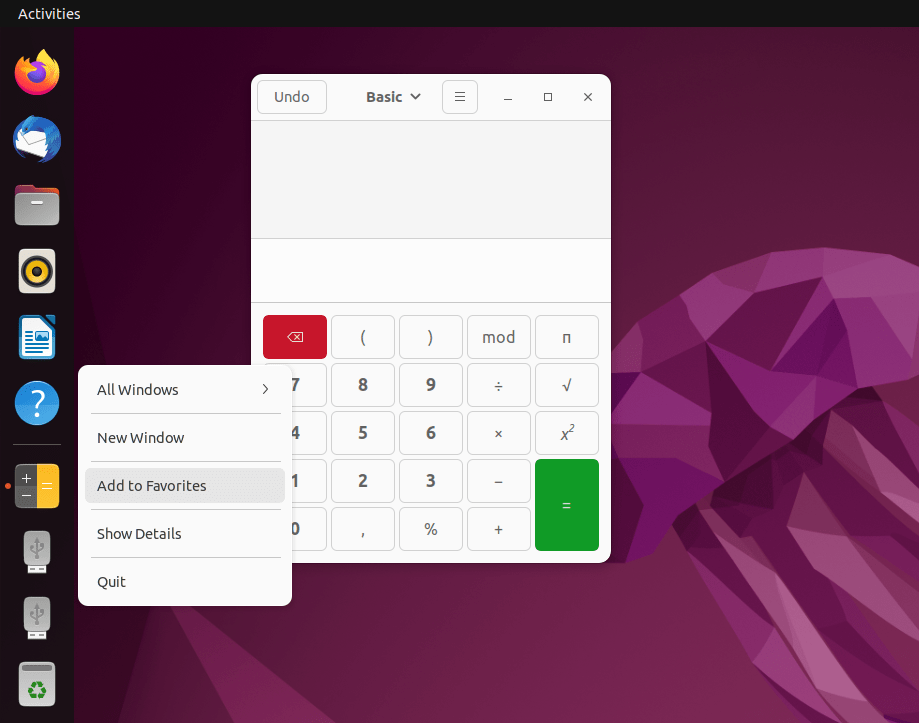
By default, the dock appears on the left side of the desktop. It displays pinned apps for easy access preferred. To pin an app, simply right-click on its icon and select Add to Favorites. Running apps are shown in the lower part; mounted volumes and the trash bin are conveniently accessible via the dock. Customize the dock by resizing, relocating, or hiding icons in the menu Settings ‣ Appearance ‣ Dock. Activate ‘minimize-on-click’ with the following command to easily minimize or restore app windows by clicking on their icons: gsettings set org.gnome.shell.extensions.dash-to-dock click-action 'minimize'.
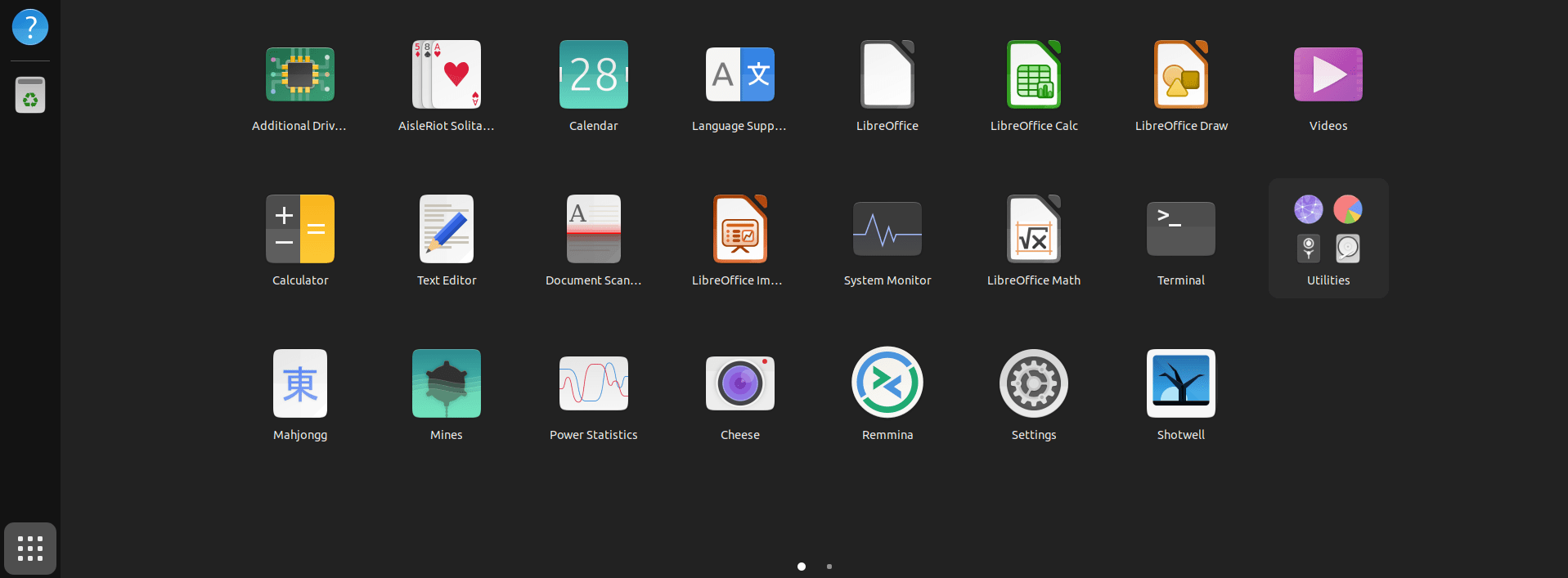
The app launcher grants access to all installed apps. Open it by clicking on the nine-dot icon at the bottom left, or perform two consecutive three-finger upward swipes on your touchpad. Scroll through your apps using your mouse or perform a two-finger left/right swipe on your touchpad. Drag and drop app icons to rearrange them to your liking.
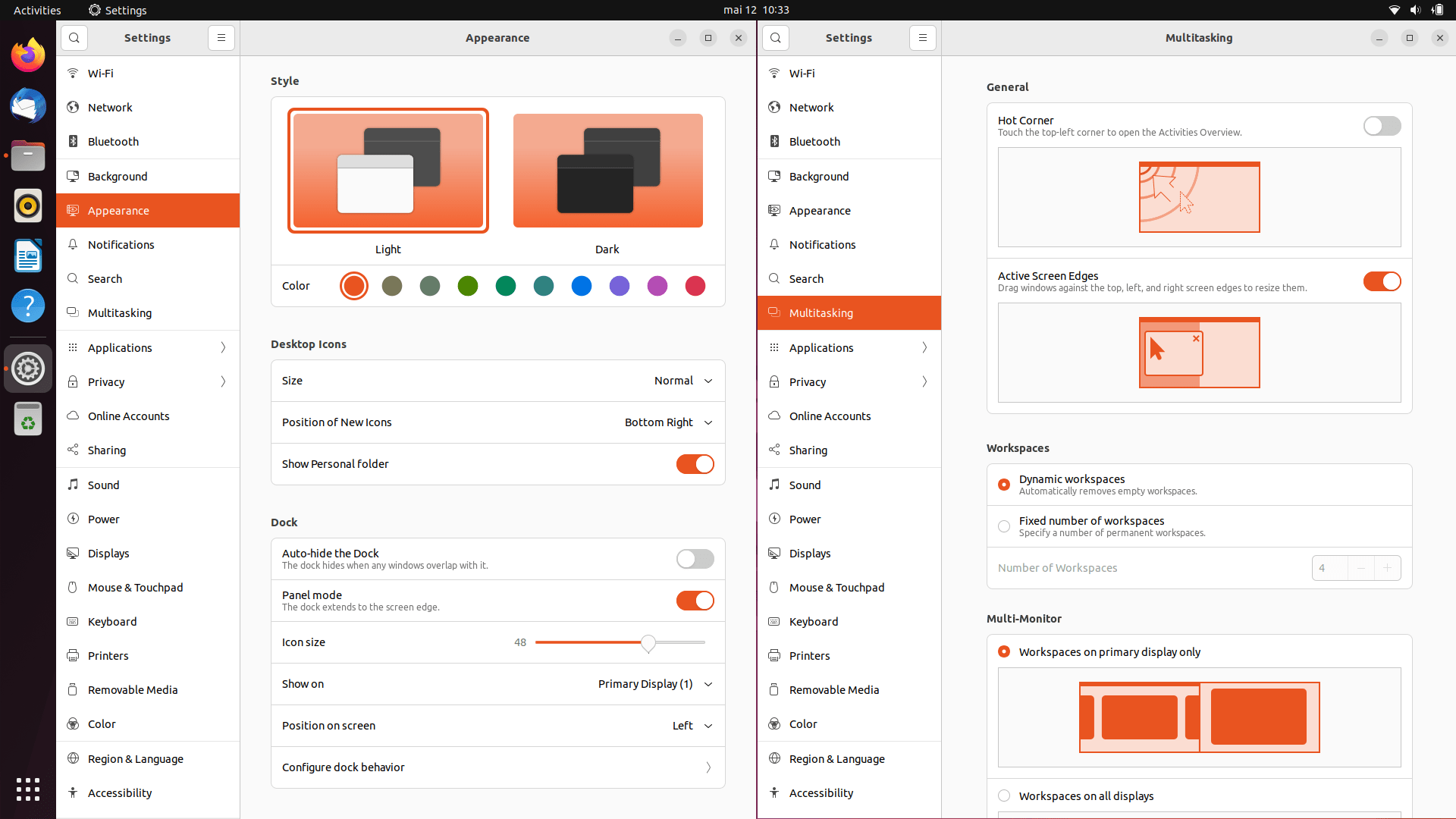
Access Settings ‣ Appearance to adjust window style, colours, icons, and file organisation. Head to Settings ‣ Multitasking to enable ‘Hot Corners’, resize windows with Active Screen Edges, or manage workspaces. Capture screenshots with the PRNT SCRN button. And improve accessibility through Settings ‣ Accessibility ‣ Seeing.
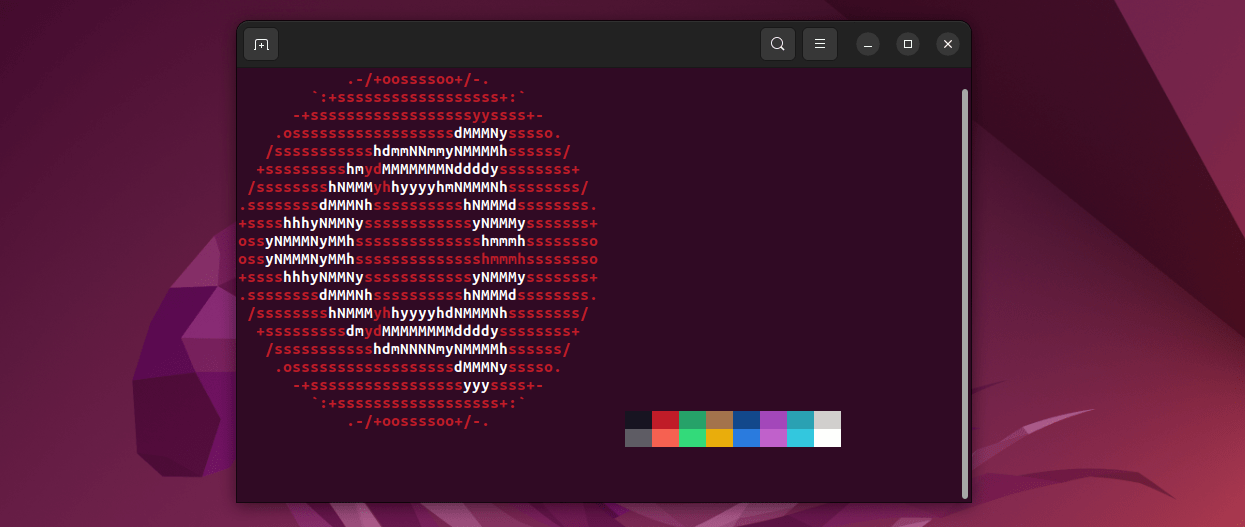
The terminal is an interface to execute text based commands. It's known by various names likeshell, console, command line or prompt. New users often shy away from the terminal, fearing its association with complex coding. However, mastering it is simpler than it seems. Open the terminal with the shortcut CTRL + ALT + T or click on the Activities button and search for Terminal. Some reading material to become a terminal-ninja: terminal commands #1, terminal commands #2, terminal commands #3, Ubuntu commands, command line book.
Replace Snap
Ubuntu 20.04 replaced the traditional software center with Snap, a new application delivery technology. Prefer the GNOME Software Center? Follow the instructions below to revert to it.
How to remove Snap from Ubuntu
Open the terminal with the CTRL + ALT + T shortcut, or click on the Activities button on the top left and search for Terminal. Then run the following commands to stop Snap daemon services:
sudo systemctl disable snapd.service
sudo systemctl disable snapd.socket
sudo systemctl disable snapd.seeded.service
List all Snap packages installed on your system:
snap list
The output should look something like:
Name                        Version             Rev     Tracking            Publisher       Notes
bare                        1.0                 5       latest/stable       canonical       base
core20                      20220318            1405    latest/stable       canonical       base
firefox                     99.0.1-1            1232    latest/stable/...   mozilla         -
gnome-3-38-2004             0#git.1f9014a       99      latest/stable/...   canonical       -
gtk-common-themes           0.1-79-ga83e90c     1534    latest/stable/...   canonical       -
snap-store                  41.3-59-gf884f48    575     latest/stable/...   canonical       -
snapd                       2.54.4              15177   latest/stable       canonical       snapd
snapd-desktop-integration   0.1                 10      latest/stable/...   canonical       -
Next, remove each Snap package as follows:
sudo snap remove --purge firefox
sudo snap remove --purge snap-store
sudo snap remove --purge gtk-common-themes
sudo snap remove --purge gnome-3-38-2004
sudo snap remove --purge snapd-desktop-integration
sudo snap remove --purge core20
sudo snap remove --purge bare
Delete any leftover files:
sudo rm -rf /var/cache/snapd/
sudo rm -rf ~/snap
Completely remove Snap from Ubuntu 24.04 LTS:
sudo apt autoremove --purge snapd
Optionally, if you want to prevent Ubuntu from installing Snap packages going forward, open a configuration file:
sudo gedit /etc/apt/preferences.d/nosnap.pref
Add the following lines, then save the file:
# This file prevents snapd from being installed by apt
Package: snapd
Pin: release a=*
Pin-Priority: -10
How to install the GNOME Software Center in Ubuntu
Run the following command to install the GNOME Software Center:
sudo apt update
sudo apt install gnome-software
How to re-install Firefox in Ubuntu after removing Snap
After removing Snap, running the command sudo apt install firefox might return the error message firefox : PreDepends: snapd but it is not installable. To re-install Firefox, open a configuration file:
sudo gedit /etc/apt/preferences.d/firefox-nosnap.pref
Add the following lines, then save the file:
# This file enables re-installing Firefox after removing snapd
Package: firefox*
Pin: release o=Ubuntu*
Pin-Priority: -1
Add the Mozilla team repository:
sudo add-apt-repository ppa:mozillateam/ppa
sudo apt update
Finally, install Firefox:
sudo apt install firefox
How to support Snap and Flatpak packages in the GNOME Software Center
First, make sure you didn't prevent Ubuntu from installing Snap packages. If you created the file /etc/apt/preferences.d/nosnap.pref in one of the previous steps, remove it before proceeding:
sudo rm /etc/apt/preferences.d/nosnap.pref
If you want the GNOME Software Center to support Snap and Flatpak packages, run the following commands:
sudo apt install gnome-software-plugin-snap
sudo apt install gnome-software-plugin-flatpak
Privacy Settings
Users can adjust privacy settings under Settings ‣ Privacy. Disable connectivity checking to thwart monitored network communication. Prevent applications from accessing your location. Turn off Thunderbolt if you don’t use external devices like docks or external graphic cards. Disable file history, and automatically delete Trash content and temporary files. Enable automatic screen lock to deter unauthorized access. And disable diagnostics to prevent error reports from being sent to Canonical.
Tweaks & Extensions
Ubuntu and the GNOME Desktop are highly customisable. You can adjust wallpapers, notifications, themes, colours, power settings, and more. GNOME Tweaks further enhances this customisation by allowing changes to lock screen backgrounds, window control buttons, startup apps, and more. Additionally, GNOME extensions provides more features such as weather updates, network speed monitoring, desktop tiling, and more.
Step-by-step guide
To install GNOME Tweaks & GNOME Extensions, open the terminal with the CTRL + ALT + T shortcut, or click on the Activities button on the top left and search for Terminal. Then run the following commands:
sudo apt install gnome-tweaks
sudo apt install gnome-shell-extension-manager
Alternatively, click on the Activities button on the top left and search for Software. Now look for GNOME Tweaks as well as Extension Manager, and click on Install.
Bug Reporting
Apport, Ubuntu's bug reporting system, captures crashes and submits bug reports automatically. Consider disabling it for privacy.
Step-by-step guide
Open the terminal with the CTRL + ALT + T shortcut, or click on the Activities button on the top left and search for Terminal. Then run the following commands to completely remove the bug report functionality:
sudo rm /etc/cron.daily/apport
sudo apt purge apport
To merely disable the automatic bug report while still keeping the functionality, open a terminal and type sudo service apport stop. Then open the configuration file with the command sudo gedit /etc/default/apport and set the value enabled to zero, i.e. enabled=0.
Codecs
Codecs tell your computer how to read video or audio files. Certain Linux distributions lack multimedia codecs due to legal constraints or ethical considerations. To view specific file formats, additional codec installation may be required.
Step-by-step guide
Open the terminal with the CTRL + ALT + T shortcut, or click on the Activities button on the top left and search for Terminal. Run the following commands to fully enjoy your multimedia experience:
sudo add-apt-repository "deb http://archive.canonical.com/ubuntu $(lsb_release -cs) partner"
sudo apt update
sudo apt install ubuntu-restricted-extras
Graphic Drivers
Most Linux distributions come with open-source graphic drivers pre-installed. While suitable for general use, they may lack gaming capabilities. To install proprietary graphic drivers, click on Activities and type Additional Drivers. Select the appropriate driver, often the default option, and reboot your system.
Software Updates
Perform regular software updates and install the latest security patches, bug fixes and application upgrades. Below more detailed instructions on how to update Ubuntu from the command line.
Step-by-step guide
Open the terminal with the CTRL + ALT + T shortcut, or click on the Activities button on the top left and search for Terminal. Then run the following command:
sudo apt update && sudo apt upgrade -y
The first part of the Ubuntu update command sudo apt update checks if new software versions are available. The second part of the command sudo apt upgrade installs the newest updates. The -y at the end of the command authorises the installation of new packages.
If you prefer not to use the terminal, click on the Activities button on the top left of the screen, and search for Software Updater. It will check if there are updates available and suggest to install them.
Once the system is up to date, clean up and remove unnecessary old packages with the following terminal commands:
sudo apt autoremove
sudo apt autoclean
sudo apt clean
Upgrade
Considering upgrading Ubuntu from one release to the next? For example from Ubuntu 22.04 LTS to 24.04 LTS, or from 24.04 LTS to 24.10 non-LTS? Find detailed instructions for the upgrade process below.
Step-by-step guide
Start by backing up your data. Then, open the terminal with the CTRL + ALT + T shortcut, or click on the Activities button on the top left and search for Terminal. Update all software packages, as described in the previous section:
sudo apt update && sudo apt upgrade -y
Next, let's find out the current Ubuntu version using the command line:
lsb_release -a
Run the following command to enable release upgrades:
sudo gedit /etc/update-manager/release-upgrades
Set the entry to Prompt=normal if you'd like to enable all release upgrades, or Prompt=lts if you'd like to enable LTS release upgrades only.
Reboot your device. Finally, upgrade Ubuntu to the next available release:
sudo do-release-upgrade -d -f DistUpgradeViewGtk3
Follow the upgrade wizard. Be patient, the upgrade can take a while. Make sure your device is plugged in and grab a coffee! Once the upgrade is complete, the system reboots and you can log in. Note that third-party software have been disabled during the upgrade and need to be enabled. Finally, make sure the upgrade was successful by checking the Ubuntu version with the command line:
lsb_release -a
Support
For further details or questions, refer to Ubuntu's documentation, tutorials, wiki or community for help.